
Tasks
A task is a piece of work that has to happen around a tour, a stop, a shipment, a load, a transport draft or a carrier. Orbit assigns it to the right people, tracks it until it is done, and keeps a record of who did what.
A task is a piece of work that has to happen around a tour, a stop, a shipment, a load, a transport draft or a carrier. Orbit assigns it to the right people, tracks it until it is done, and keeps a record of who did what.
Was this article helpful?
Did not find your answer?
Ask Luna, or write to our support team.
Much of the work in logistics happens next to the transport itself. A driver checks the seal before leaving the depot, someone collects empty crates at a café, a dispatcher confirms a customs document before a tour can start. Tasks give this work a place in Orbit. Each Task belongs to one object, has an assignee and an optional due date, and can carry a form that the assignee fills in when they complete it.
Key highlights:
Task refers to exactly one Tour, Stop, Shipment, Load, Transport Draft or CarrierA task always refers to one object in your organisation, so the assignee sees what the work is about.
| Object | Typical use |
|---|---|
Tour | A vehicle check before departure, a debrief after the tour |
Stop | Work at one address on the tour, such as collecting empties |
Shipment | A document check or a follow-up for one shipment |
Load | A check on one pallet or package |
Transport Draft | A review of a booking before it becomes a transport |
Carrier | Paperwork for a carrier, such as an insurance certificate |
A task on a Stop stays with that stop even when you replan the tour. It can only be completed once the driver has arrived at the stop.
Every task starts as Open and ends in one of three closed statuses. A closed status is final: a completed, skipped or cancelled task cannot be reopened.
| Status | Meaning |
|---|---|
Open | The work is still to be done |
Completed | The assignee did the work and, if the task has a form, submitted it |
Skipped | The assignee decided the work was not needed. Only possible for skippable tasks |
Cancelled | An operator withdrew the task, for example because it was created in error |
Overdue is not a separate status. An open task whose due date has passed is shown as overdue in every app, and it stays Open until someone closes it.
When a stop leaves its tour, or the whole tour is cancelled or deleted, the tasks on that stop are no longer needed. Orbit removes them from all task lists, and their history shows Task deleted. If the stop comes back, for example because a cancelled tour is reset, the tasks that a template created for it reopen. Tasks that were already completed, skipped or cancelled are not affected.
Each task has one assignee. You pick the side and the level: an organisation, a team or a single user.
| Side | Organisation | Team | User |
|---|---|---|---|
| Operator | Operator organization | Operator team | Operator |
| Carrier | Carrier | Carrier team | Carrier user |
Drivers are carrier users, so a task for a driver is assigned to the carrier, to the driver's carrier team or to the driver in person. A carrier user only sees tasks assigned to their carrier, their own team or themselves. Operators see every task in the organisation.
Through the API, a task can also go to a shipper, a shipper team or a shipper user. Orbit Hub does not show tasks, so your operators work such a task in Orbit MissionControl or through the API.
Operators can move an open task to another assignee in Orbit MissionControl. Carrier users can complete and skip tasks, but they cannot reassign or cancel them.
A due date is optional. A task template can set it to a fixed time after the task is created, or, for tasks on a stop, relative to the end of the stop's planned time window. Tasks created through the API take the due date the integration sends.
Three settings control how strict a task is. Task templates set them for the tasks they create, and the API accepts them per task. All three are off by default.
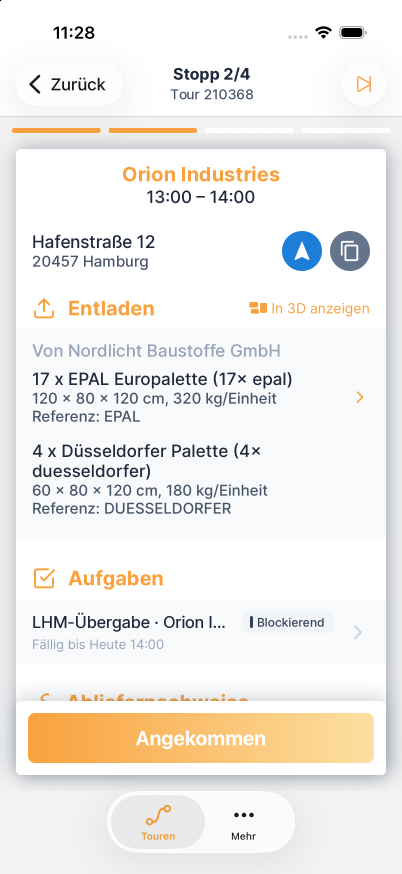
Blocking applies to tasks on a tour or a stop that are assigned to the carrier side. Only Orbit Cockpit and Orbit Connect hold up the tour, and a carrier user only sees the tasks of their own carrier. A blocking task assigned to your operator team does not stop a driver.
A task can carry a form: checkboxes, text and number fields, dates, choices, photos and file uploads, grouped into steps and shown or hidden by conditions. The assignee fills in the form and submits it to complete the task. Orbit checks the required fields before it accepts the completion, and the submitted values stay on the task as its result. A task without a form is completed directly once the work is done. See Task Forms for every field type and option.
Orbit MissionControl: operators find all tasks under Tasks in the navigation, with the views All tasks and My tasks, and the Tasks filter in the Inbox. The task window is where operators complete, skip, cancel, reassign or snooze a task and read its history. See Tasks in Orbit MissionControl.
Orbit Cockpit: drivers see a Tasks section on the tour and on each stop. Tasks at a stop open when the driver arrives, and blocking tasks appear before the driver can continue. See Tasks in Orbit Cockpit.
Orbit Connect: carrier users find their tasks under Tasks in the navigation and on the tour page. A blocking task opens before the tour can continue. See Tasks in Orbit Connect.
A task template can name a document template under Generate document. When a task from that template is completed, Orbit renders a PDF from the submitted form and attaches it to the task and to the object the task belongs to. Operators find it in the Documents section of the task window and with the tour or shipment. Completing the task never waits for the document. See Task Templates and Document Engine.
Spaceport Shipping Co. delivers beverages to cafés across Lisbon. Their operations lead, Julia, sets up a task template that creates the task "Collect empty crates" for each stop of a tour. It is assigned to the carrier, carries a form with a crate count and a photo, and blocks departure from the stop. When the driver Mohammad arrives at a café in the Alfama district, Orbit Cockpit shows the task. He counts twelve crates, takes a photo and submits the form, and only then can he depart. Back in the office, Julia opens the task in Orbit MissionControl and downloads the PDF receipt that Orbit attached to the tour.
Tasks and task templates are available through the Orbit API v5:
POST /tasks creates a task for an object, named by its referencedEntityOrn. A task on a stop refers to the stop's stable id, so the reference survives replanning.GET /tasks lists tasks with filters for status, assignee and object. GET /tasks/{taskId} returns one task with its form and, once closed, its outcome.POST /tasks/{taskId}/actions applies one action to an open task. The type is complete, skip, cancel, reassign, snooze, unsnooze or delete. A task that requires a person rejects complete from an API key, and a task on a stop rejects it until the driver has arrived./tasktemplates manages task templates.Four webhook events follow the task lifecycle: task-created, task-completed, task-skipped and task-cancelled. Each delivery carries the task after the change and a referencedEntity with the object's ORN, type and id. On task-completed, task.outcome.formOutput holds the submitted form. Reassigning, snoozing and removing a task send no event. PDF documents from a completed task arrive separately through the document-link-action-created event.
See the Orbit API Reference for the endpoints, schemas and webhook payloads.
No. Completed, skipped and cancelled are final. If the work has to happen again, another task is needed.
No. Blocking tasks hold up the tour in Orbit Cockpit and Orbit Connect, for the carrier users who can see them.
No. Carrier users can complete tasks and skip skippable tasks. Cancelling and reassigning are for operators.
Tasks must be enabled for your organisation. Contact Orbit support to turn them on.