Orbit MissionControl is where operators find, work on and hand over tasks. The Tasks page lists every task in your organisation, the Inbox shows the ones waiting for you, and the task window lets you fill in, complete, skip, cancel, reassign or snooze a task.
Tasks reach Orbit MissionControl from task templates or through the API. Your daily work runs through the Inbox, where your own open tasks sit next to incoming drafts. The Tasks page is the complete lookup of open and closed tasks. A click on any task opens the task window. For what a task is and how statuses and assignees work, see Tasks.
Key highlights:
One list for everything: the Tasks page shows every task in your organisation, including tasks assigned to carriers and drivers
Your tasks in the Inbox: open tasks assigned to you, your team or your whole organisation appear in the Inbox and count towards its badge
Everything in one window: form, due date, assignee, object, documents and history sit side by side
Personal snooze: snoozing hides a task for you alone, until a time you choose
Live: when a colleague, a carrier or a driver completes a task, your lists and open windows update without a reload
The title at the top left is a view switch with two built-in views:
All tasks: every task in your organisation
My tasks: tasks assigned to you personally, to your operator team or to your whole operator organisation
When you use a filter often, save it as a view. Apply the filter, then select Save as View and give the view a name. Saved views appear under Tasks in the navigation, below All. You can also save a view for everyone in your organisation with Save View for Everyone.
Select Add Filter to narrow the list. You can filter by Status, Kind, Assignee scope, Due date, Origin, Referenced entity type and Creation date. The Search tasks field on the right finds tasks by their name, by the name of the object they belong to and by the name of the assignee.
Two pills switch between the two halves of the list:
Open: tasks still waiting to be done. Overdue tasks come first, then tasks by due date, then tasks without a due date.
Completed: closed tasks, newest first. This covers tasks with the status Completed, Skipped and Cancelled.
Each row shows the columns Task, Referenced entity, Assignee, Due (or Closed for closed tasks), Kind · Origin and Status. An overdue task carries an Overdue badge.
Tasks you have snoozed are hidden from the open list. To see them, turn on Show snoozed. Snoozed tasks then appear dimmed, with a Snoozed until … badge. Select Clear snooze in the badge to bring the task back straight away.
The Inbox combines incoming drafts with your own open tasks. A task appears here when it is assigned to you, to your operator team or to your whole operator organisation, and you have not snoozed it. Task rows carry a Task chip so you can tell them apart from drafts. Overdue tasks are pinned to the top.
Use the pills above the list to focus:
All: drafts and tasks
Orders and RFQs: drafts only
Tasks: tasks only
Filters, search and saved views in the Inbox apply to drafts only, as the hint Applies to drafts only. Tasks are listed unfiltered. says. To filter tasks, use the Tasks page. The number on the Inbox badge counts both your drafts and your open, not snoozed tasks.
Select a task in the Tasks page or the Inbox to open its window. You can move the window freely and keep several task windows open at once.
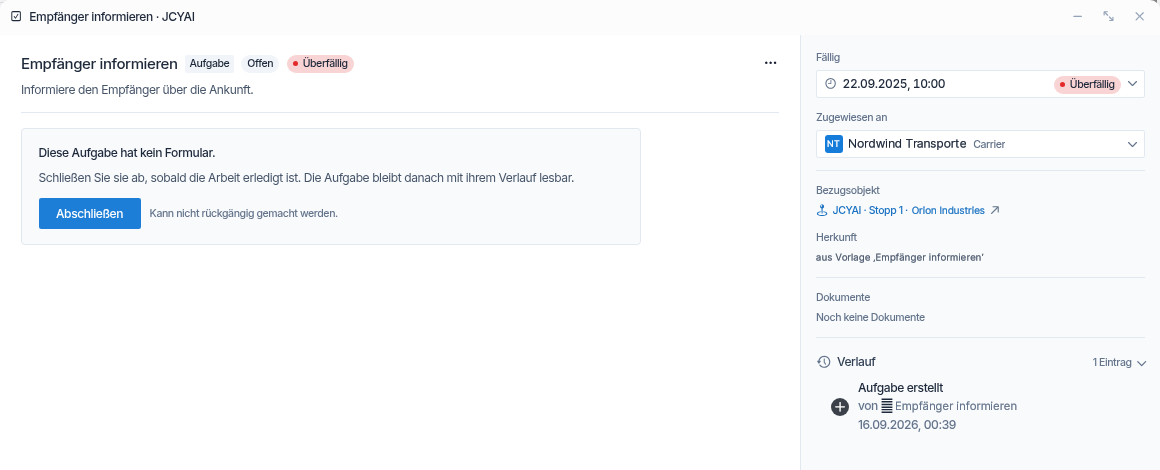
The task window: the task and its primary action on the left, due date, assignee, object, documents and history on the right.
The left side shows the task name with its status chip, an Overdue chip if it is late, and the description. Below it you find the task's form, or, for a task without a form, a panel with the Complete button. The ⋯ menu next to the name holds Skip and Cancel task.
The right side lists, from top to bottom:
Section
What it shows
Due
The due date, or No due date. Select it to snooze the task.
Assigned to
The current assignee and their side (operator, carrier or shipper). Select it to reassign the task to an operator or a carrier.
Referenced entity
The object the task belongs to, for example a Tour, a stop, a Shipment, a Load, a transport draft or a carrier. Select it to open that object. A stop opens its Tour, a Load opens its Shipment.
Origin
How the task was created, for example from template '…' or API.
Documents
Files uploaded through the task's form and documents created by the Document Engine from the task. Select a name to download it.
History
Every action on the task with who did it and when. Collapsed on open tasks, expanded on closed ones.
When a task is closed, the window turns read-only. Due becomes the closing status with the date, Assigned to becomes Completed by, Skipped by or Cancelled by, and a completed form shows the submitted values.
Nothing is saved until you submit, as the note Changes are saved on completion. under the form says. If a value is not accepted, Orbit marks the field and takes you to it. For the field types and how steps work, see Task Forms.
Snoozing hides a task from your own Inbox and open list until a time you choose. It does not change the due date. Your colleagues still see the task, and its History records the snooze.
Select the due date under Due.
Choose 1 hour, Until tomorrow 08:00 or Next week Monday 08:00. For another time, select Custom…, pick a date and time, and select Snooze.
A snooze ends at the due date at the latest. A task that becomes due returns to your Inbox, however far ahead you snoozed it. To end a snooze early, select Clear snooze under Due or in the task's row.
A task that belongs to a stop can only be completed once the driver has arrived at that stop. Until the arrival is recorded, Orbit refuses the completion and the window shows The action failed. Please try again. The task stays open and your form entries are kept. Check the stop on the Tour and complete the task after the driver has arrived.
When a colleague, a carrier or a driver completes, skips, cancels or reassigns a task, the lists and the Inbox update without a reload. If you have that task's window open, it switches to the read-only view and shows who closed the task. New tasks appear as soon as they are created.
Operator Administrator and Operator Member: see every task in the organisation and can complete, skip, cancel, reassign and snooze any of them.
Custom roles: need the task permissions of their role. Without permission to read tasks, the Tasks item in the navigation is disabled and shows Insufficient permissions. Without permission for an action, the window shows You are not allowed to perform this action.
Carrier users and drivers: work in Orbit Connect and Orbit Cockpit, only see tasks assigned to their carrier, their team or themselves, and can complete and skip them. Reassigning and cancelling are reserved for operators.
Saved views: saving a view needs permission to create views.
Julia is a dispatcher at Spaceport Shipping Co. in Paris. Every tour to a new customer creates a task "Confirm unloading ramp" from a template, assigned to her dispatch team. On Monday morning she opens the Inbox, selects the Tasks pill and sees three tasks, one of them overdue. She opens the overdue one, calls the customer in Brussels, fills in the ramp number in the form and selects Submit. The second task needs an answer from a customer who is away until Wednesday, so she snoozes it with Custom… until Wednesday 09:00. The third belongs to a tour the Milan office handles, so she reassigns it to her colleague Mohammad. While she works, a driver completes a photo task at a stop in Antwerp, and that task leaves her open list without a reload.