
LoadPlan 3D
LoadPlan 3D calculates how Loads fit into a vehicle by solving a 3D packing problem.
LoadPlan 3D calculates how Loads fit into a vehicle by solving a 3D packing problem.
Was this article helpful?
Did not find your answer?
Ask Luna, or write to our support team.
Note
LoadPlan 3D calculates how Loads fit into a vehicle by solving a 3D packing problem. It visualises the result as an interactive 3D model, helping you verify vehicle capacity, optimise loading order, and spot issues before a Tour begins.
When you assign Loads to a Tour, you need to know whether they physically fit into the vehicle — and in what order they should be loaded. LoadPlan 3D answers both questions. It takes the dimensions and weight of each Load, runs a packing algorithm against the vehicle's container dimensions, and produces a 3D visualisation showing exactly where each Load is placed.
The result is an interactive 3D model you can rotate, zoom, and inspect from preset camera angles. Loads that could not be placed are flagged, and utilisation metrics (volume, weight, and loading metres) are displayed so you can assess how efficiently the vehicle is used.
Key highlights:
Load fits inside the vehicle container, respecting dimensions, weight limits, and stacking rulesTours, see how the vehicle looks at each stop as Loads are picked up and deliveredLoads do not fit into the selected vehicleLoadPlan 3D is available in several places across Orbit, each serving a different purpose.
Available in: Orbit MissionControl, Orbit Cockpit, Orbit Connect
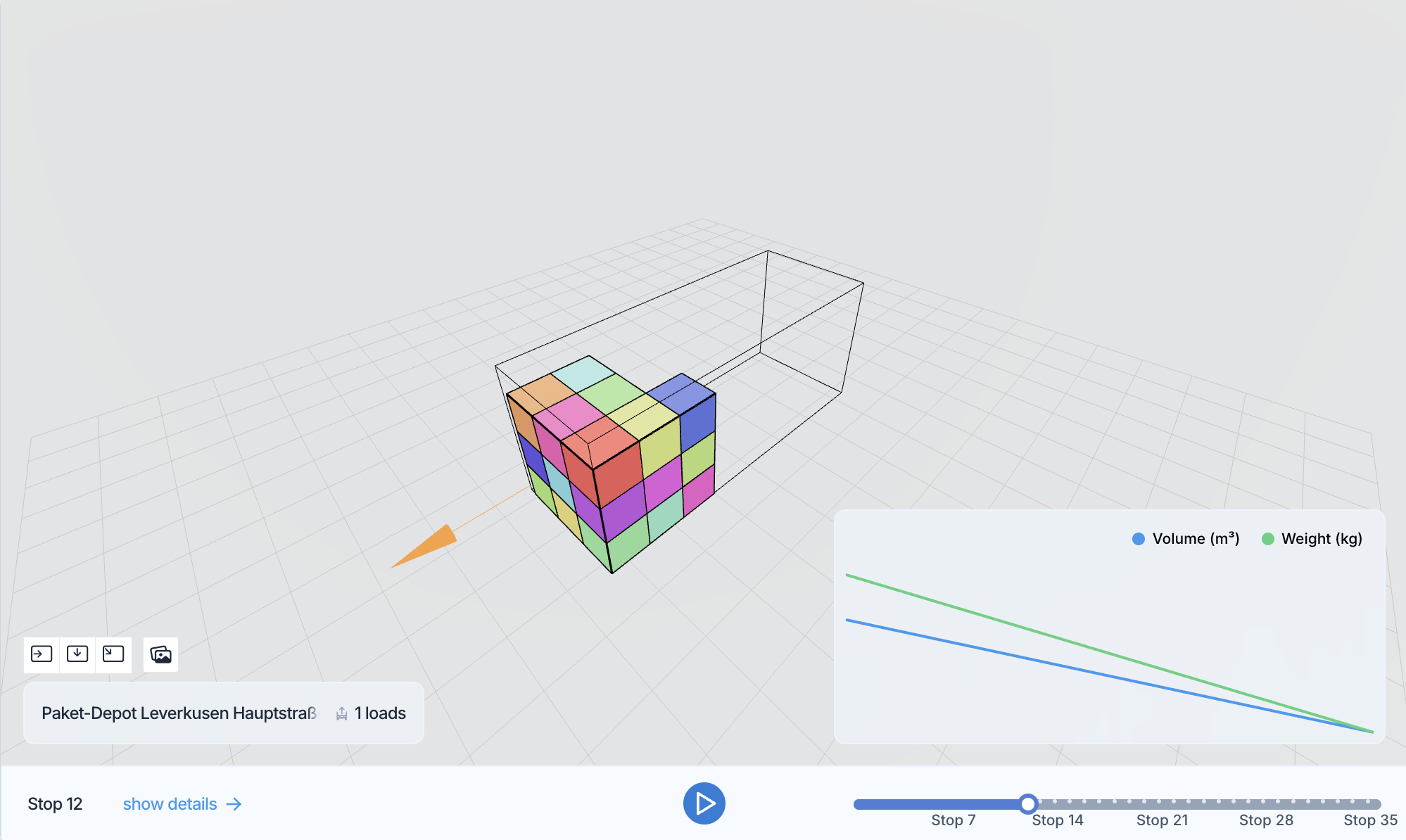
The Load Plan Viewer is available on the Tour detail page and shows the complete load plan for the assigned vehicle. You can:
\1. Open the Load Plan Viewer from the Tour detail page
\2. Switch between Tour mode (overall view of all Loads) and Stop mode (see the vehicle state at each individual stop)
\3. Select individual Loads to highlight them in the 3D view
\4. Use camera presets to inspect the plan from above, the side, the front, or the back
\5. Toggle load animations to see how Loads are added and removed at each stop
\6. Review utilisation graphs showing volume, weight, and loading metre usage across stops
In Stop mode, Loads being loaded at the current stop are highlighted differently from Loads being unloaded, making it easy to verify the correct loading sequence.
Drivers can also access the Load Plan Viewer for their assigned Tour in Orbit Cockpit on their mobile device, with full touch controls for rotating and zooming.
Available in: Orbit MissionControl
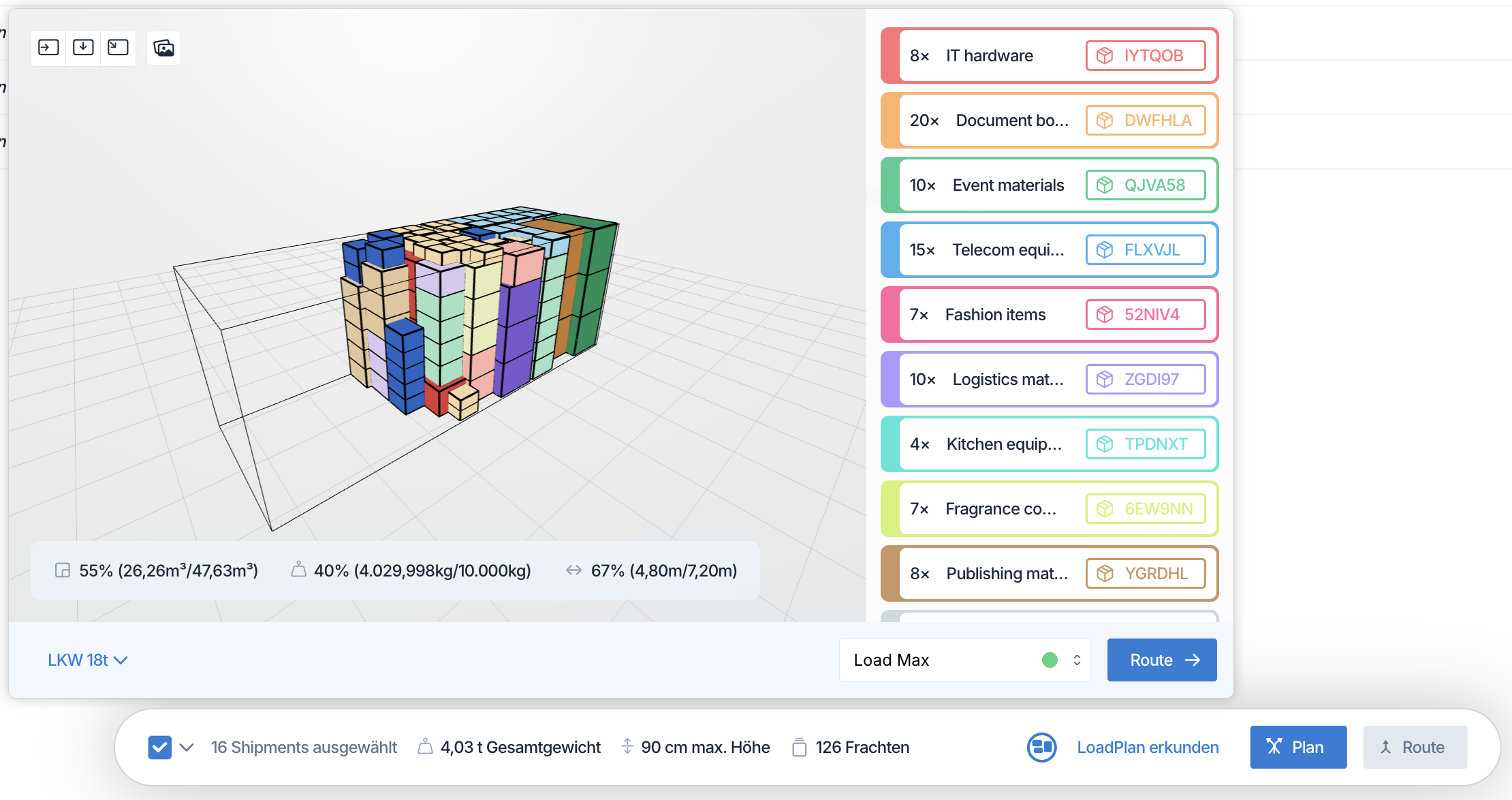
The Load Plan Explorer is available on the Shipments list and lets you explore how selected Shipments would fit into a specific vehicle before creating a Tour:
Select one or more Shipments from the list
Open the Load Plan Explorer
Choose a Vehicle Class, a specific Vehicle, or enter custom container dimensions
Select a packing profile (see below)
Review the 3D visualisation to check whether the Loads fit and how much capacity is used
If any Loads cannot be placed, they are listed separately so you can adjust the vehicle selection or split the Shipments across multiple Tours.
The Load Plan Explorer offers three packing profiles that control how Loads are arranged inside the vehicle:
Loads with the same recipient are stacked together, but Loads for different recipients are kept accessible without rearranging.Loads are stacked at all. Ideal for fragile goods or situations where stacking is not permitted.When comparing profiles, a utilisation difference indicator shows how much capacity usage varies between them. A green status dot indicates that all Loads fit into the vehicle under that profile.
LoadPlan 3D can be used within product calculation to check whether Loads fit into specific vehicle containers during pricing. This allows products to factor vehicle capacity into their pricing logic — for example, to automatically select the smallest suitable Vehicle Class or to apply surcharges when a larger vehicle is needed. For details on configuring products, refer to the Products documentation.
For Tours with multiple stops, LoadPlan 3D accounts for the loading and unloading sequence. The algorithm ensures that Loads to be delivered last are placed at the back of the vehicle first (last-in, first-out), so the driver can access Loads for the next stop without rearranging the vehicle.
When a Tour has complex stop sequences — for example, a pickup occurring after several deliveries while other Loads are still on the vehicle — the algorithm segments the Tour into loading phases and calculates each phase separately, carrying forward the positions of Loads that remain on the vehicle.
LoadPlan 3D calculates three utilisation metrics for each load plan:
LoadsLoads on the container floorIn Stop mode, these metrics are shown per stop, so you can see how utilisation changes as Loads are picked up and delivered along the route.
Yes. In the shipments list preview, you can choose a Vehicle Class, a specific Vehicle, or enter custom dimensions (length, width, height) and weight capacity for the container.
Loads that cannot be placed are listed separately as unplaced loads. You can then choose a larger Vehicle Class, split the Shipments across multiple Tours, or adjust the packing profile.
Yes. Drivers can view the load plan for their assigned Tour in Orbit Cockpit with full touch controls for rotating and zooming the 3D model.
Yes. Switch to Stop mode in the load plan viewer to see the vehicle state at each individual stop, including which Loads are being loaded and unloaded.
The profile selection is available in the shipments list preview. On the Tour detail page, the load plan is calculated based on the Tour configuration.
Yes. LoadPlan 3D can be integrated into product calculation to check vehicle fit and factor capacity into pricing logic. Refer to the Products documentation for configuration details.