
Recurring Tours
Recurring Tours let you define a Tour once and have Orbit generate it automatically on a repeating schedule: every weekday, three times a week, or any weekly pattern you choose.
Recurring Tours let you define a Tour once and have Orbit generate it automatically on a repeating schedule: every weekday, three times a week, or any weekly pattern you choose.
Was this article helpful?
Did not find your answer?
Ask Luna, or write to our support team.
Note
Recurring Tours let you define a Tour once and have Orbit generate it automatically on a repeating schedule: every weekday, three times a week, or any weekly pattern you choose. They are the natural way to run line hauls: the fixed, repeating connections between hubs or terminals that form the backbone of a transport network.
Many logistics operations repeat the same route on a fixed rhythm. The classic case is a line haul, the regular trunk run between two fixed points in a network, such as a nightly truck between a terminal in Rotterdam and a hub in Lyon, or a daily shuttle between a port and an inland depot. The same pattern applies to a bakery supplying the same shops every morning, or a parts distributor running a fixed Monday–Wednesday–Friday route. Creating each of these Tours individually is slow and error-prone.
A Recurring Tour solves this. You build a master Tour once, with its stops, times, Region, vehicle class and, optionally, a Carrier and pricing, and attach a weekly schedule to it. Once activated, Orbit generates a fresh Tour for each occurrence automatically, ahead of time, so your team always has the upcoming work ready to plan and dispatch. Set the trunk route up once, and every scheduled run is created for you.
Key highlights:
Tour produces an ongoing series of scheduled Tours.Tour a chosen number of days in advance, giving your team time to prepare.Tours already created.Carrier and set a fixed price once; every generated Tour inherits them.A Recurring Tour has two parts: the master, which holds the template and the schedule, and the instances, which are the individual Tours Orbit creates from it.
You create a master Tour in Orbit MissionControl using the transport composer, with at least two stops and a valid time on each.
You attach a schedule: the weekdays it should run, an optional start and end date, and a lead time.
You activate the series. Orbit registers the schedule and begins generating Tours.
From then on, each occurrence produces its own Tour, dated and named according to the schedule, ready for your team to fill, plan and dispatch.
A master moves through a small set of clearly labelled states:
| Status | Meaning |
|---|---|
Draft | The master has been created but the schedule is not yet running. No Tours are generated. |
Active | The schedule is live and Orbit is generating Tours on the configured days. |
Paused | Generation is stopped. Existing Tours are untouched; no new ones are created. |
Ended | The series is finished permanently. The schedule is removed and cannot be restarted. |
You configure everything from the recurring schedule card at the top of the transport composer in Orbit MissionControl.
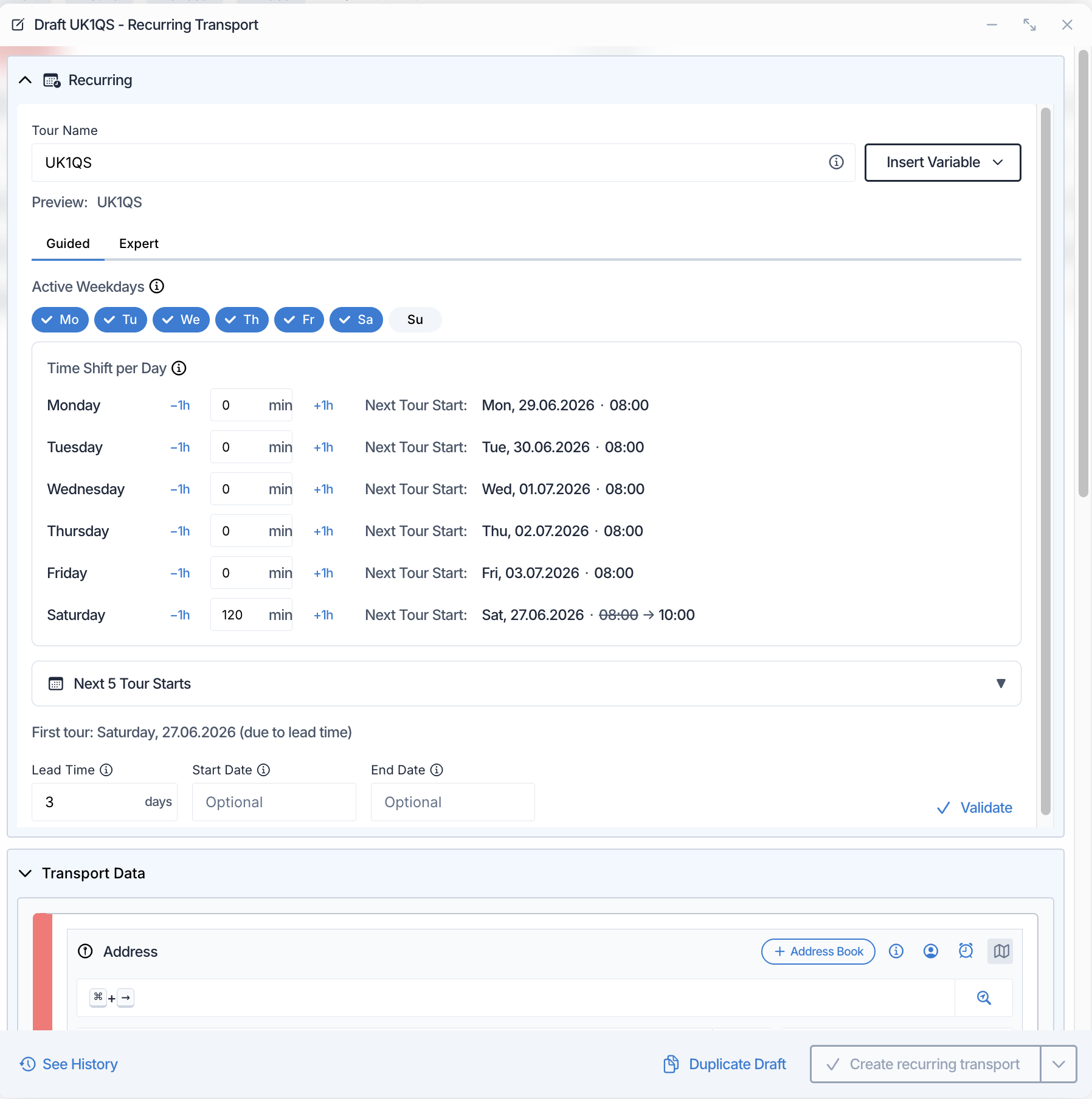
The recurring schedule card in Orbit MissionControl: choose the active weekdays, set the lead time, and preview the next tour starts.
There are two ways to define when the Tour repeats:
Tour should run (for example Monday, Wednesday and Friday). Orbit shows you the next few start dates as you choose, so you can confirm the pattern at a glance.A Recurring Tour starts once per day on each active day. If different days need slightly different timings, use the per-day time shift to move all stops earlier or later on a given weekday.
Lead time controls how many days before the run date each Tour is created. A lead time of three days means the Tour for next Monday appears the previous Friday, giving your team the weekend to assign a vehicle and prepare. A lead time of zero creates the Tour on the day it runs.
Both are optional:
Tours. Leave it empty to begin as soon as you activate.You can set a name template for the series so every generated Tour is identifiable at a glance, for example incorporating the run date or weekday. A live preview shows you how the name will read.
You manage a Recurring Tour from the recurring tours list in Orbit MissionControl, or from the composer itself.

Controlling a series from the recurring tours list: pause, resume, show instances, or end the recurring tour.
Region, an active vehicle class, and a lead time within the allowed range) before the series goes live.Tours while keeping the master and all existing Tours intact. Use this whenever you need to change the schedule.Tours already generated are kept. A series cannot be reactivated once ended. To start again, create a new Recurring Tour.The schedule is locked while a series is Active. To change the weekdays, lead time or dates, pause the series first, make your changes, then resume.
A Recurring Tour carries its Carrier and pricing on the master, and every generated Tour inherits them:
Carrier on the master just as you would on any Tour. Each generated Tour is assigned the same Carrier automatically.Tour it generates.To change the Carrier or pricing for future Tours, end the current series and create a new one with the updated details.
The recurring tours list in Orbit MissionControl gives you an overview of every series and its progress. For each one you can see:
Tour will be created.Active, Paused or Ended.Tours the series has generated, with quick access to view them all.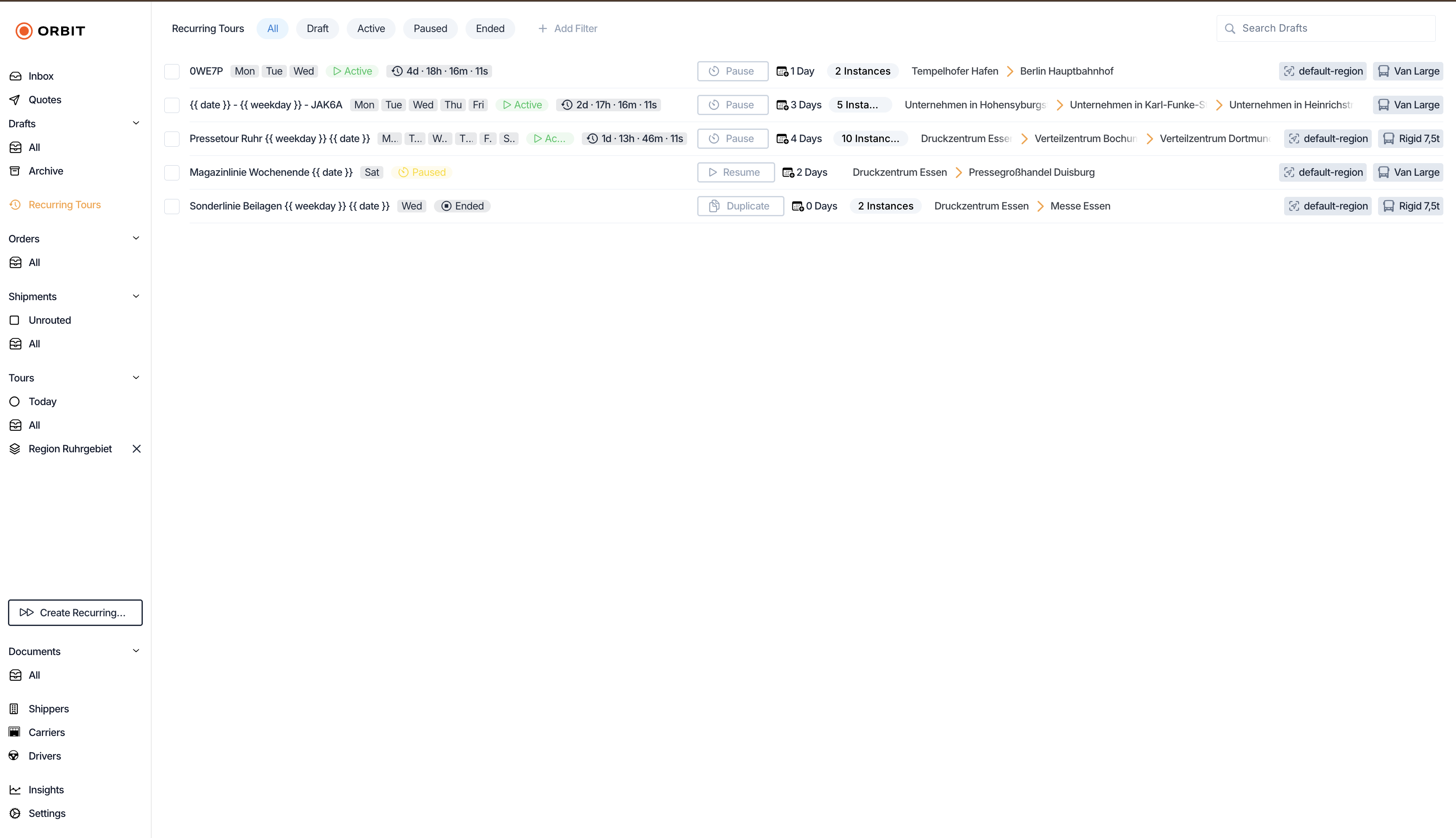
The recurring tours list: weekday badges, status, lead time, next creation date, and instance count for every series.
Generated Tours are marked as coming from a Recurring Tour, so they are easy to recognise in your Tour lists, and you can tell at a glance whether each one has already been filled with work or is still empty.
Spaceport Shipping Co. runs a nightly line haul between its terminal in Rotterdam and its hub in Lyon, departing every Monday, Wednesday and Friday at 22:00. An operator at Spaceport opens Orbit MissionControl, builds the Tour once with both stops and their times, assigns the regular line-haul Carrier, and sets the fixed trunk price. In the recurring schedule card they select Monday, Wednesday and Friday and set a lead time of two days. When they activate the series, Orbit prepares each upcoming Tour two days ahead of its run, already carrying the right Carrier and price. The dispatch team simply adds the night's Shipments and sends the driver on the way. No one rebuilds the trunk route again.
Recurring Tours can also be managed programmatically. For request and response schemas, see the Orbit API Reference.
Yes. Pause the series first, adjust the weekdays, lead time or dates, then resume. The schedule is locked while a series is active to prevent accidental changes.
They are kept. Pausing and ending only affect future generation: any Tour Orbit has already created stays in place and can be planned and dispatched as normal.
No. A Recurring Tour starts once per day on each active weekday. If you need a second run, create a second Recurring Tour.
Yes. Use the per-day time shift to move all stops earlier or later on a specific weekday, while keeping a single series.
No. A Carrier is optional. If you assign one on the master, every generated Tour inherits it; if you do not, the generated Tours are created without a Carrier and can be assigned later.
No. Ending a series is permanent. To run the same pattern again, create a new Recurring Tour from the master.
Generation is controlled by the lead time and the start date. A Tour appears its lead-time number of days before it runs, and never before the start date. If your start date falls inside the lead-time window, Orbit tells you the date the first Tour will actually be created.
Tours are created according to the lead time: each one appears that many days before its run date, not all at once. This keeps your Tour lists focused on the work that is actually coming up.