
Decode
How Orbit Decode turns order emails into filled-in TransportComposers: MagicInboxes, manual uploads, background processing and the review step.
How Orbit Decode turns order emails into filled-in TransportComposers: MagicInboxes, manual uploads, background processing and the review step.
Was this article helpful?
Did not find your answer?
Ask Luna, or write to our support team.
Note
📦 As a starting point we recommend first understanding the concept of TransportShapes and TransportComposers before diving into this article.
Orbit Decode revolutionises how unstructured order emails are handled, converting them into actionable Transport (Order, Shipment and/or Tour) objects within the Orbit platform. Decode fundamentally simplifies the handling of order emails saving valuable time in daily operations. Through automation and AI, Decode frees users from tedious manual tasks, paving the way for more efficient and error-free data processing.
This document aims to demystify Decode, outlining its features, workflows, and the synergy between its components.
Key Highlights
As a transformative feature designed to redefine the workflows of Orbit users, understanding the individual components that constitute the decoding process is essential. Generally, it's practical to distinguish three distinct stages within each Decode process: Getting Data into the system, processing of the data in the background, and the final review of decoded data inside an automatically filled-out TransportComposer.
As highlighted earlier, we advise first understanding the TransportShape and TransportComposer concept. Nevertheless, here's a brief refresher on the crucial elements that are important for understanding the Decode flow:
TransportComposers: Customisable forms allowing users to send quotes and create Orders, Shipments, and/or Tours, all within one go.
TransportShapes: Configuration objects for full customisation of TransportComposers.
Understanding the Role of TransportShapes in Decode
TransportShapes play a central role in configuring how Decode operates. Specifically, a TransportShape:
By carefully configuring your TransportShapes, you ensure that Decode behaves consistently and efficiently according to your business requirements.
The first step of each Decode Job is all about getting relevant data into the system. Decode is optimised on the principle that each email message, including its attachments, should encapsulate all relevant information about a transport. This means that, whatever entry point into Decode you choose, try to limit every job to one isolated transportation context. Or in other words: Ensure that each transport is contained within a single Decode Job, avoiding fragmentation across multiple jobs (1 Decode Job = 1 Email = 1 Transport).
Tip
Currently, our system limits attachment processing to a maximum of 30 attachments per email. This includes images embedded within the email body or footer, which may not be immediately apparent as attachments.
Currently, there are two distinct entry points for initialising Decode jobs.
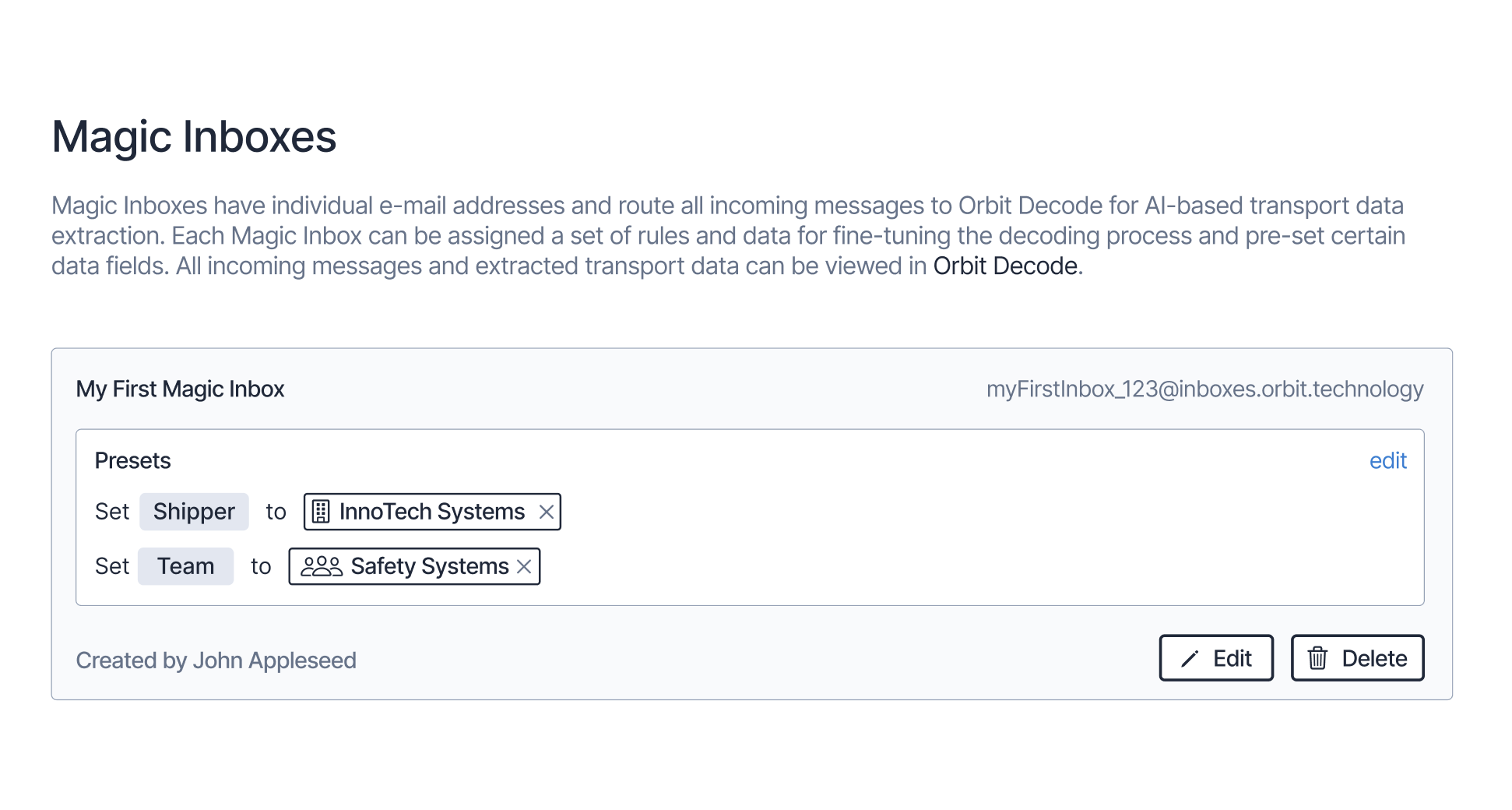
A MagicInbox is an Orbit-generated email address that automatically creates a Decode Job for every incoming email. A Magic Inbox is always linked to a TransportShape and may include Presets and MagicFields for fields that are visible as per the TransportShape configuration and may override Decode’s data output. To set up this flow, follow these steps:
Make sure your users role has the relevant Permissions to manage MagicInboxes
Go into Orbit MissionControl’s Settings > Magic Inboxes > Create MagicInbox
After creation, you may (optionally) set up some field presets on the MagicInbox. For every Decode Job generated, the corresponding TransportComposer will be automatically populated with these preset values, regardless of the specific data decoded from the emails.
After creation, you also may (optionally) set up so-called MagicFields. MagicFields allow you to customize data extraction from emails beyond the predefined transport schema. If your TransportShape has configured some properties, you may for example instruct the AI how to correctly set this specific property.
Now you can copy the generated email address and give this to your clients or set up appropriate forwarding.
Tip
Additionally, you are able to provide custom instructions to the AI model that evaluates emails for this inbox. Use this to explain any particularities or give custom commands to the AI model. Ensure the instructions are written in clear, human-readable text, as if you were instructing a person.
It's recommended to write these instructions in the language you expect the emails to be in. However, any language will work.
Example:
“Attention: Euro pallets are always abbreviated as PTN.”
Of course, you are not limited to only generating Decode Jobs via incoming emails. A Job can just as well be triggered manually from Orbit MissionControl:
Go To Orders > Drafts > Create Decode Jobs
Now you can drag and drop emails from your desktop
.msg and .eml file formatsOptionally, you can also create a Decode Job without any email files
Note
When uploading files or processing email attachments, Decode supports the following formats:
Documents:
.txt).csv).html).md).rtf).docx).xls, .xlsx)Images:
.png).jpg, .jpeg)Other:
.pdf)
Regardless of the chosen entry point, the transformative process begins behind the scenes immediately after we detect incoming email data. An empty TransportDraft is created at this stage. While it initially lacks any specific Transport details, it serves to monitor the Decode Job's progression. Each Decode Job is uniquely represented by a TransportDraft, and you can track the current status of any Decode Job by locating its corresponding draft in the Orders > Drafts list.
TransportDrafts generated via Decode feature exclusive status indicators to denote their progress:
Upon the successful processing of a Decode Job, an in-app notification will alert you, making it possible to review all decoded data. Editing the TransportDraft is permissible only at this stage, with all other statuses serving purely for informational purposes.
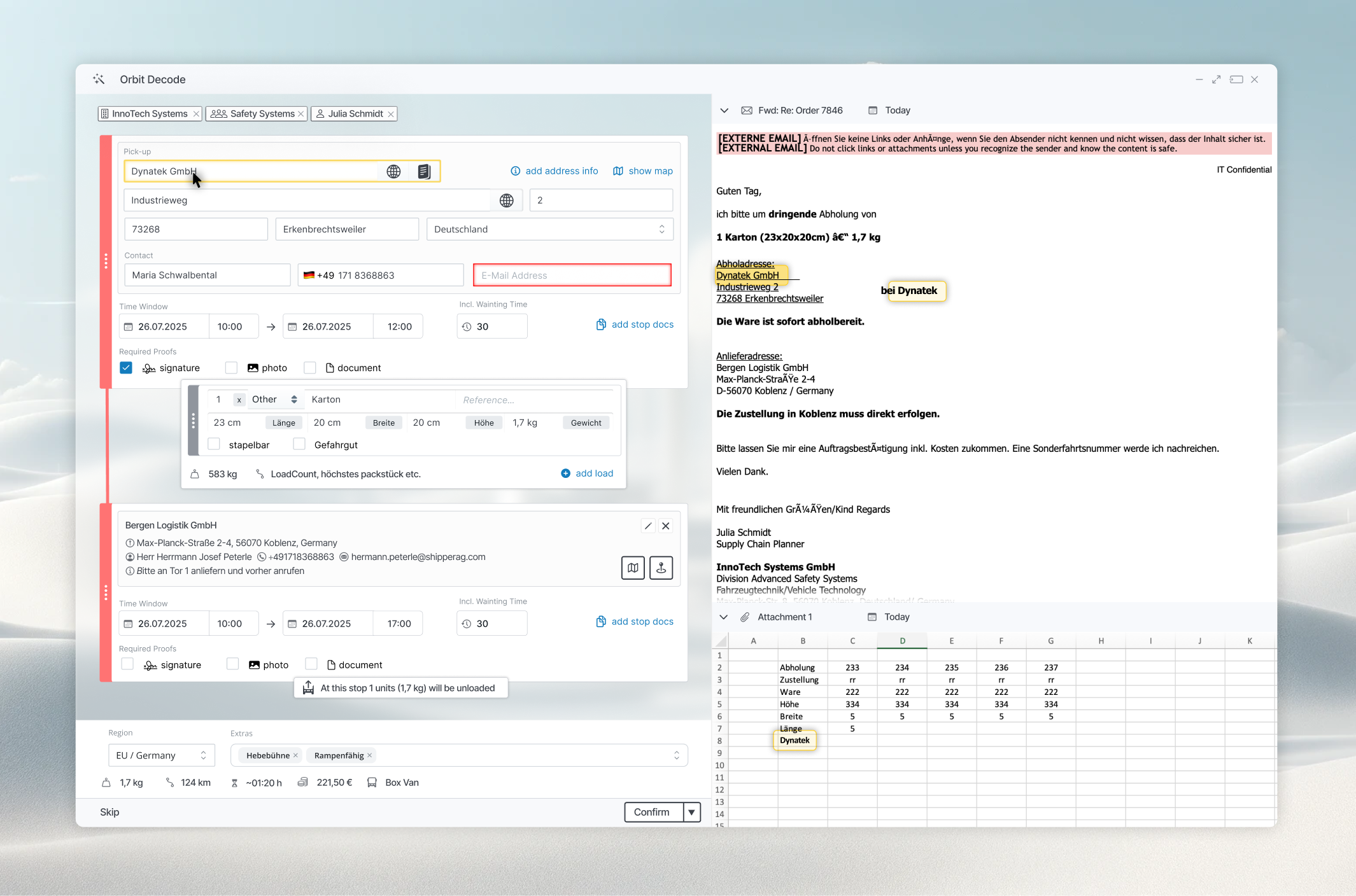
Upon reaching the green status, a Decode Job prompts the user to review the decoded data. The interface for this task is divided into two sections: a TransportComposer on the left and the original email content including all attachments on the right.
The TransportComposer has been automatically filled out with all the decoded transportation data. Additionally, every pre-filled input field is highlighted with a small decode icon to signal its automatic completion.
When you click on any of these pre-filled fields, direct your focus to the right section of the window. In this area, we visually indicate the segments in the email likely responsible for the data in the specific field, along with a matching score. This score reflects our confidence level in the source identification, acknowledging the inherent uncertainties in the artificial intelligence's processing of the job.
At the bottom of the TransportComposer, you'll find a "check" button designed to execute all validations and highlight any fields needing further user attention. After ensuring all fields are correctly completed and validated, you can proceed to submit the TransportComposer.
This marks the end of the Decode Job. Subsequently, the associated TransportDraft is marked with a checkmark and linked to the generated output objects (orders, shipments, or tours). Further editing of this specific TransportDraft is no longer possible.
By this stage, the previously unstructured email has been successfully integrated into the Orbit platform, transforming it into structured, actionable data.
Note
🪝 Of course, both Decode and MagicInboxes are compatible with Orbit’s webhooks. You can subscribe to the creation of mailboxes, the receipt of emails, as well as to the completion of decode jobs.