
Integrated Carriers
How integrated carriers connect Orbit to a carrier's own booking system: direct booking on assignment, automatic status updates and documents, and why they never appear in the marketplace.
How integrated carriers connect Orbit to a carrier's own booking system: direct booking on assignment, automatic status updates and documents, and why they never appear in the marketplace.
Was this article helpful?
Did not find your answer?
Ask Luna, or write to our support team.
Note
An integrated carrier is a Carrier connected to Orbit through the carrier's own booking system. Assigning a Tour to an integrated carrier books the transport directly with that carrier. Its people never log into your Orbit apps, and Orbit receives status updates and documents back automatically.
Most carriers work inside Orbit: their teams respond to offers in Orbit Connect, and their drivers run tours in Orbit Cockpit. An integrated carrier works differently. It runs its own operational system, such as a freight forwarder or parcel network, or another organisation that works in its own Orbit, and Orbit talks to that system directly. When you assign a Tour to an integrated carrier, Orbit places the booking in the carrier's system straight away, then keeps the Tour up to date as the carrier reports progress.
For you as an operator, an integrated carrier behaves like any other Carrier in most of Orbit MissionControl. The differences show up exactly where the carrier's own system takes over: dispatching, execution updates, and documents.
Key highlights:
Tour sends the booking straight to the carrier's system; a confirmed assignment means a confirmed bookingTour and its Shipments without anyone touching the appsTour as the carrier produces themCallouts; you assign them directlyTo book another organisation that works in Orbit, see Orbit Partner Organisations as Carriers. It covers what the partner prepares and what comes back from the partner's Orbit.
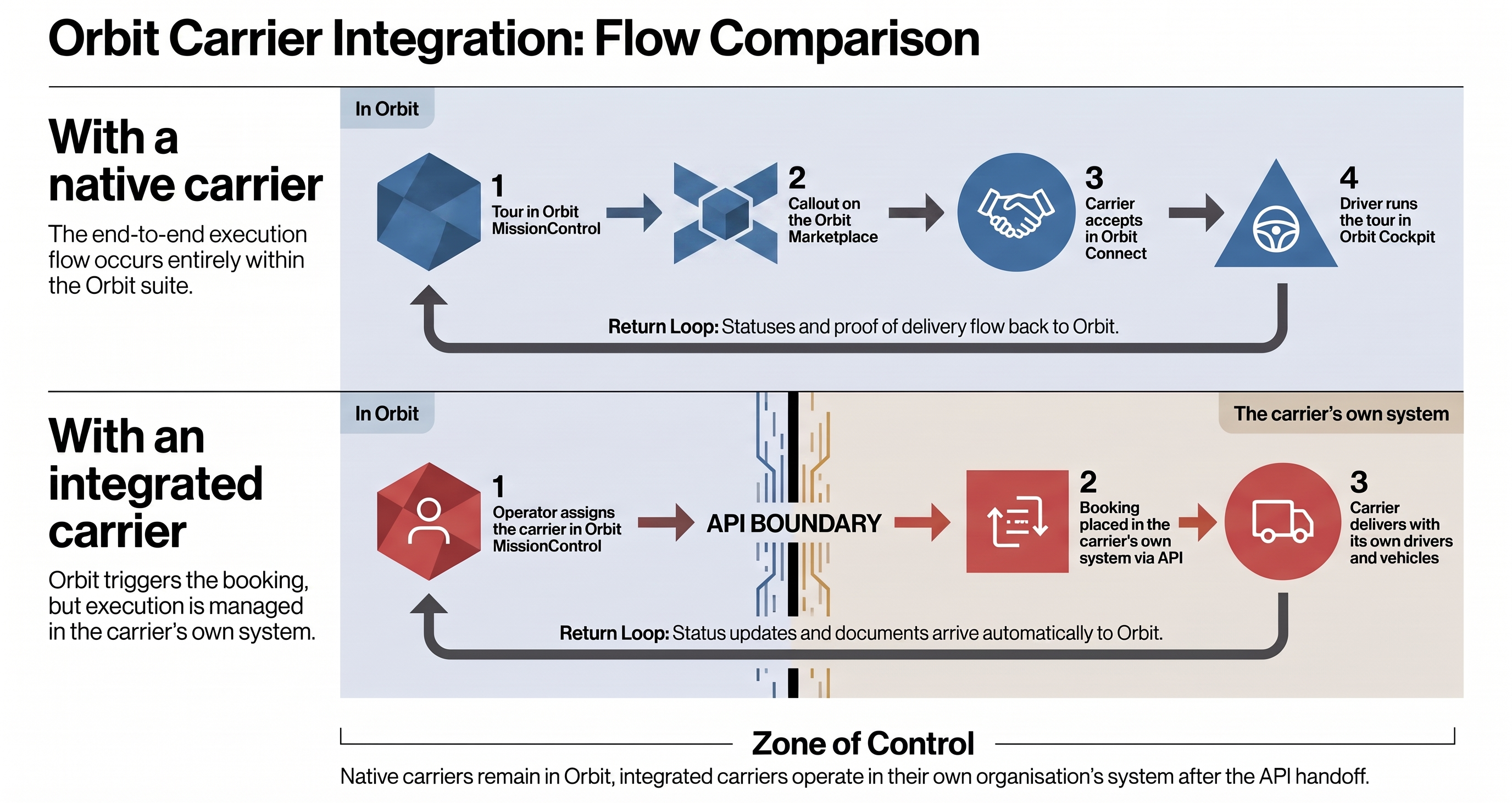
A regular carrier in Orbit has CarrierTeams, CarrierUsers, and Vehicles, receives Callouts through the Orbit Marketplace, and executes tours in Orbit Connect and Orbit Cockpit. An integrated carrier has none of these, by design:
Tours remain visible as usual.Callouts and is excluded from every Marketplace view. The only way to dispatch to it is direct assignment.Tour is booked with an integrated carrier, the driver, vehicle, and team controls on the Tour are disabled. The carrier decides internally who drives and with which vehicle.You set up an integrated carrier in Orbit MissionControl, on the carrier create page:
Create a Carrier as usual and turn on the Integrated Carrier switch at the end of the form.
Choose a Provider. Each provider is one supported carrier network. Providers marked with a Sandbox tag never move real freight. Use them to rehearse the flow safely. The provider cannot be changed after the carrier is created; to switch providers, create a new Carrier.
Enter the Credentials the provider requires. For DSV, for example, these are your myDSV account details, your MDM customer number, and the API subscription keys issued in the DSV developer portal.
Review the provider's Settings, for example a default Incoterm applied to bookings without their own delivery terms, or a mapping from your load types to the package types the carrier expects.
Select Test Connection to check the credentials against the carrier before saving. A sandbox provider reports Sandbox Responded instead of a full connection check, since there is no real carrier behind it.
Save the carrier.
The What This Integration Can Do summary on the same page states each provider's capabilities in plain words: whether the carrier reports status automatically, whether bookings can be cancelled or changed after they are made, whether the carrier returns a price, which documents it delivers, which countries it serves, and how many stops it accepts.
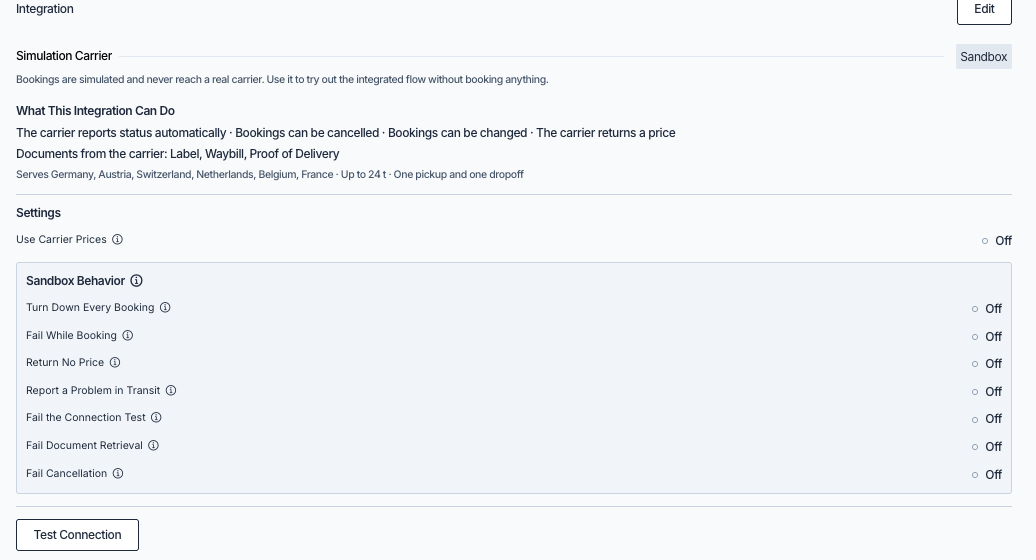
To change the configuration later, open the carrier's detail page and edit the Integration section. Stored credentials are never displayed. To rotate one, type the new value; a field left empty keeps the stored value.
DSV issues its credentials in two separate places, and you need both:
developer.dsv.com: a free self-service registration where you issue the six API subscription keys: access token, booking, tracking, label, webhook, and download. Create all six under the product Generic APIs for Air, Sea and Rail; a key issued under any other DSV API product is rejected.Both portals are normally registered with the same username and password, so one set of details usually covers both. They remain two separate accounts: should the passwords ever differ, the myDSV one is what Orbit needs. The subscription keys stay with your own DSV account, which means the API quota and any key rotation are yours to manage. Test Connection checks each key on its own and names the one that fails, which is the quickest way to spot a key taken from the wrong portal product.
You assign an integrated carrier from the Tour detail page in Orbit MissionControl, exactly as you would any other carrier. Two things help you before you commit:
Shipment, one pickup and one dropoff. An Orbit partner organisation accepts tours with up to 50 stops.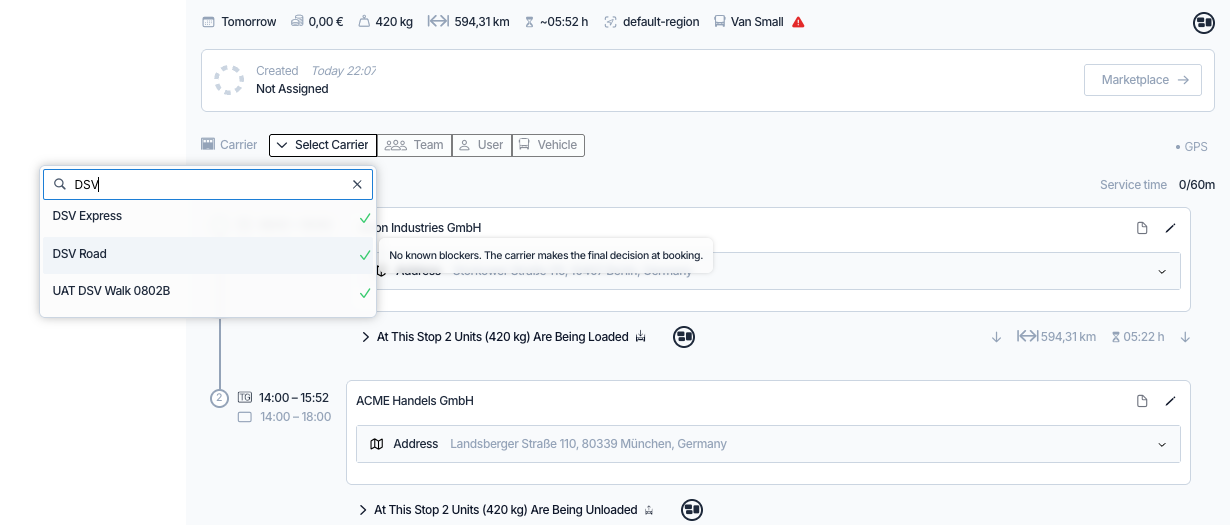
When you assign the carrier, Orbit books the transport immediately:
Tour.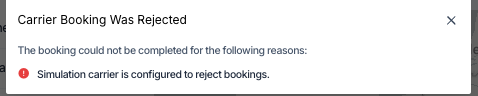
If the provider returns its own price and the carrier is configured to use it, the Tour is priced with the carrier's returned price instead of the calculated one.
Every Tour booked with an integrated carrier carries a Carrier Integration panel. While the booking is healthy it stays deliberately quiet: one line naming the provider and the carrier's booking reference, with a copy button for quoting that reference back to the carrier.

Progress does not appear in this panel. Carrier events advance the Tour itself and are recorded in the tour's timeline, so a booking running to plan needs no separate status to read. The panel speaks up only when the booking diverges from the tour:
| Booking state | What it means |
|---|---|
Booked | The carrier confirmed the booking; execution has not started. Not shown in the panel, because the tour's own status carries it |
In Transit | The carrier reported movement. Not shown in the panel, because the tour's own status carries it |
Exception | The carrier reported a problem, such as a delay or a failed delivery attempt. Shown as a red badge; the timeline holds the detail |
Failed | Orbit could not transmit the booking to the carrier. Shown as a red badge |
Cancelled | The carrier cancelled the booking on its side. Shown as a red badge; the Tour itself is untouched, so remove the carrier or cancel the Tour |
Two further rows appear when they apply:
Tour was edited after booking and the change has not reached the carrier yet. See Changing or removing a booking below.Carrier updates advance the Tour and its Shipments automatically. A reported pickup sets the Tour to Running; a reported delivery sets it to Review Required, with arrival and departure times filled in from the carrier's data. The carrier can never complete or cancel a Tour: reviewing and completing stays with you, and a carrier-reported cancellation only flags the booking as Cancelled in the panel. You decide whether to remove the carrier or cancel the Tour.
Editing a booked tour. If you change data that was already sent to the carrier, such as an address, a time window or the load, the Carrier Integration panel shows an Update Pending at Carrier badge. The What This Integration Can Do summary states whether a carrier accepts changes to a booking. If it does not, send the change by removing the carrier and assigning it again, or tell the carrier yourself. Select Acknowledge once the carrier knows about the change, or if the change does not matter to the carrier.
Removing the carrier. Some providers do not support cancelling a booking once it is made. In that case, Orbit warns you before the carrier is removed: releasing the Tour frees it in Orbit, but the booking at the carrier stays active, and you need to cancel it directly with the carrier to avoid charges. If a booking could not be cancelled, a notice with the booking reference stays on the Tour until the situation is resolved.
Automatic dispatch treats integrated carriers with the same rule as everything else: no Callouts. A Sequence can assign an integrated carrier directly, which books the transport just like a manual assignment. If the carrier rejects that booking, the Sequence stops rather than silently moving on, and the Tour shows a Carrier Booking Failed alert with the rejection reasons so you can dispatch it manually.
Julia, an operator at Orion Industries in Berlin, receives an order for two pallets going to a customer in Munich. Instead of offering the Tour on the marketplace, she assigns it to the company's DSV carrier directly from the tour page. The picker shows a green tick, meaning no known blockers, and the booking is confirmed within seconds. Overnight, DSV reports the pickup and the Tour switches to Running on its own. The next afternoon the delivery event arrives, the Tour moves to Review Required, and the proof of delivery appears in the tour's documents. Julia reviews the timings and completes the Tour without anyone at DSV ever opening an Orbit app.
Tours created and assigned through the Orbit API follow the same rules: assigning an integrated carrier books the transport, and rejections return the same structured reasons you see in Orbit MissionControl. See the Orbit API Reference for the relevant endpoints and schemas.
No. Integrated carriers cannot receive Callouts and never appear in the Orbit Marketplace. Assign them directly from the Tour.
No. The provider is fixed when the carrier is created. Create a new Carrier to use a different provider. Credentials and settings can be changed at any time.
The carrier manages drivers, vehicles, and teams in its own system. While a Tour is booked with an integrated carrier, those controls are disabled in Orbit MissionControl.
In the tour's timeline. Carrier events are recorded there as they arrive, and they move the Tour along on their own; the Carrier Integration panel itself only flags a booking that has diverged.
The panel shows an Update Pending at Carrier badge. If the carrier does not accept changes to a booking, remove the carrier and assign it again to send the changed data, or tell the carrier yourself and select Acknowledge.
The panel shows the booking as Cancelled, but the Tour itself is untouched. You decide the next step: assign a different carrier or cancel the Tour.
It depends on the provider. DSV books point-to-point tours with exactly one Shipment. An Orbit partner organisation accepts tours with up to 50 stops and 40 Shipments.
Yes. Providers marked Sandbox simulate the whole flow, including booking, status updates, documents, and even deliberate failures, without any real transport being booked.